DocFly PDF Editor Review: Features, Pricing & Real-World Use
An in-depth, user-focused review of DocFly’s online PDF editor, covering features, pricing, pros, cons, and best use cases.
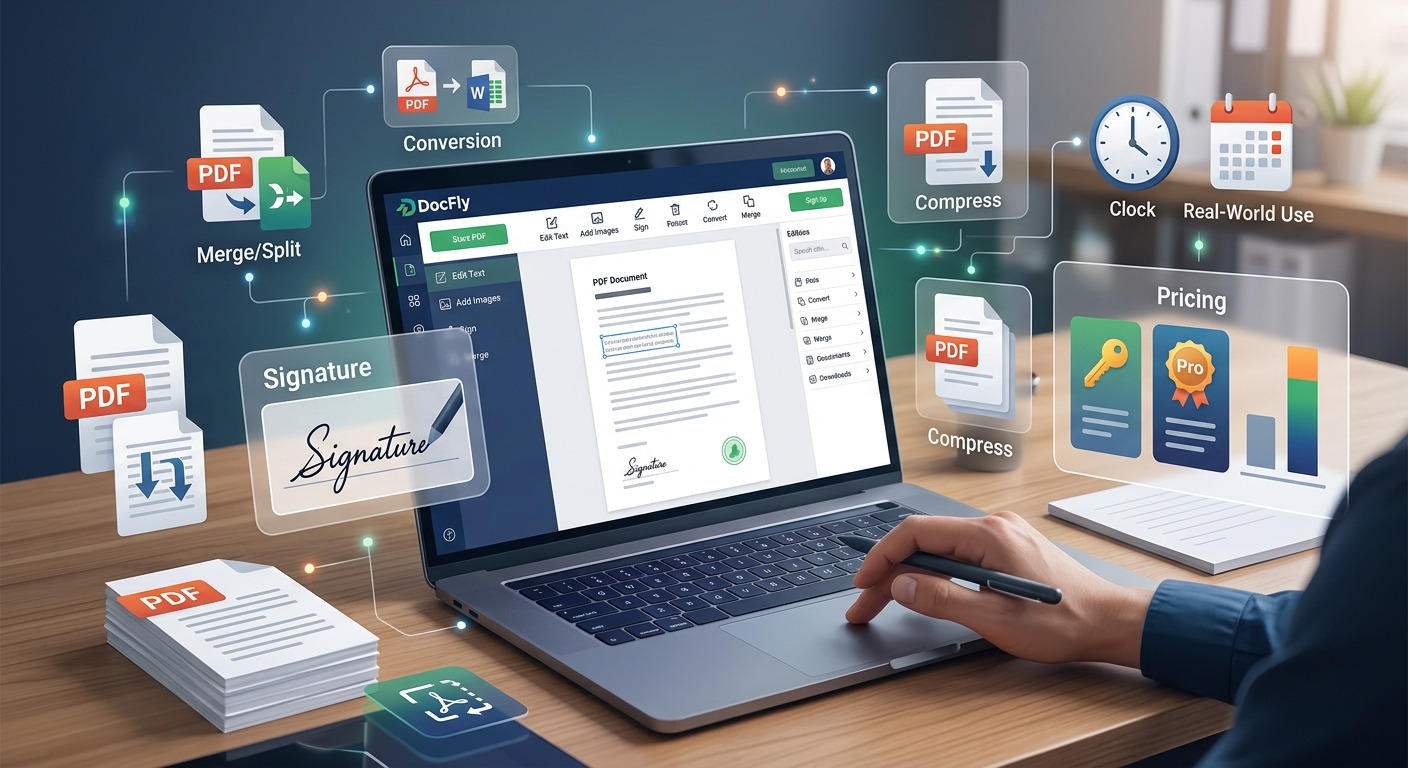
DocFly is an online PDF editor (formerly known as PDF Pro) that focuses on making routine PDF tasks fast and accessible from the browser. This review synthesizes user feedback and publicly available information to explain how DocFly works, what it does well, where it falls short, and which types of users will benefit most from it.
What Is DocFly and Who Is It For?
DocFly is a browser-based PDF platform that lets you upload documents, apply edits, convert between formats, sign, and download the results without installing desktop software. It targets people and teams who need a lightweight, subscription-based alternative to traditional desktop PDF tools.
Typical users include:
- Individual professionals who receive PDFs to sign, correct, or lightly edit.
- Small businesses that want an affordable way to handle invoices, contracts, and internal forms.
- Students and educators who need to annotate, merge, or convert documents without specialized IT support.
- Remote teams that prefer cloud tools accessible from any modern browser.
Unlike full document management systems, DocFly is focused specifically on PDF manipulation: editing text, rearranging pages, converting files, and adding signatures.
Key Capabilities at a Glance
The table below summarizes the main functional areas covered by DocFly.
| Capability Area | What You Can Do |
|---|---|
| Editing | Edit text and images, add annotations, insert or remove content. |
| Page Management | Reorder, rotate, delete, merge, or split PDF pages. |
| Conversion | Convert PDFs to and from Word, Excel, PowerPoint, and image formats. |
| Form Handling | Fill in form fields, type into PDFs, and add signatures. |
| Security | Add or change passwords and control access to files. |
| Cloud Access | Work entirely in the browser, with online file storage in paid plans. |
These functions position DocFly as a general-purpose PDF utility rather than a niche tool for a specific industry.
Editing and Annotating PDFs in the Browser
One of DocFly’s main attractions is the ability to edit PDFs online without installing anything. Once a file is uploaded, you can interact with it using tools in a graphical interface that resembles common document editors.
Text and Image Editing
DocFly focuses on practical, day-to-day editing scenarios:
- Change or correct existing text directly in the PDF where possible.
- Add new text boxes to supplement or clarify information.
- Insert, move, or delete images and logos.
- Apply simple styling such as font size and basic formatting.
Because the editor runs in a browser, responsiveness depends on your connection and file size. For short or medium-length documents, users typically report quick interaction and minimal lag.
Annotations and Markup
For reviewing and collaborating, DocFly offers basic annotation options:
- Highlight important passages.
- Underline or strike through text.
- Add comment boxes or callouts.
These tools are particularly useful in academic and professional contexts where reviewing documents is a recurring task, and they align with functionality found in most mainstream PDF readers and editors.1
Working with PDF Pages: Merge, Split, Reorder
Page-level operations are a central part of DocFly’s appeal, especially when you regularly assemble or reorganize multi-page documents.
Merging and Splitting PDFs
DocFly allows you to combine several files into one or break up a long PDF into smaller parts:
- Merge multiple files (for example, separate scans or chapters) into a single document.
- Split a large PDF into separate files by page range.
This is particularly useful for finance, legal, and government workflows where documents frequently need to be repackaged for different recipients or submissions.
Reordering, Rotating, and Deleting Pages
Within a single file, you can:
- Drag and drop pages to change their order.
- Rotate pages that were scanned in the wrong orientation.
- Delete unwanted pages before sending out a final version.
These capabilities are standard for professional PDF tools and can significantly streamline document preparation tasks.2
Conversion Between PDF and Office Formats
DocFly supports two-way conversion between PDFs and common office formats, aiming to reduce friction when collaborating with people who prefer Word, PowerPoint, or Excel.
Exporting PDFs to Editable Formats
You can convert PDFs to:
- Microsoft Word (for deeper editing and reformatting).
- Microsoft Excel (for working with tabular data).
- Microsoft PowerPoint (for presentations or slide decks).
- Image formats such as JPG or PNG for inserting into other media.
The quality of conversion depends on the structure of the original file. Simple, text-based PDFs tend to convert well, while complex layouts may require manual adjustment. This behavior is common across most PDF converters and is not unique to DocFly.3
Creating PDFs from Other File Types
DocFly also lets you upload Word, Excel, and PowerPoint files and convert them into PDFs suitable for sharing or archiving. This is in line with established best practices, as PDF is widely used for distributing documents in a fixed layout that looks the same across devices.4
Form Filling and Digital Signatures
A frequent use case for online PDF tools is completing forms without printing. DocFly supports both typing into documents and adding signatures, making it a practical option for handling digital paperwork.
Completing PDF Forms
With DocFly, you can:
- Click into existing form fields to type information.
- Add text boxes where fields are not properly defined.
- Check boxes or select options when the PDF includes these controls.
This is helpful for common tasks such as employment forms, registration documents, and simple applications. However, DocFly places more emphasis on filling forms than on designing advanced interactive forms from scratch, which may matter for organizations that need complex form-building capabilities.
Adding Signatures
DocFly’s signing tools are intended for routine, low-friction approvals:
- Create a reusable signature by drawing or typing your name.
- Place the signature image where required on the document.
- Apply it to multiple documents as needed.
For high-stakes agreements where compliance with electronic signature frameworks such as the U.S. ESIGN Act and the EU eIDAS Regulation is critical, you should verify whether DocFly’s implementation meets your organization’s legal and policy requirements, and consider specialized e-signature platforms if needed.5
Security, Privacy, and Cloud Storage
Since DocFly is a cloud-based tool, security and file handling are important considerations.
Data Storage and Deletion
Public information about DocFly indicates that files are stored on cloud infrastructure and can be removed from the system by the user. This approach is broadly consistent with standard practices for online productivity services that rely on managed hosting for reliability and scalability.6
As with any SaaS tool, best practice is to:
- Review the vendor’s privacy policy and security documentation.
- Avoid uploading highly sensitive data unless contractual and technical safeguards meet your requirements.
- Regularly delete files you no longer need in the online workspace.
Passwords and Access Control
DocFly lets you add or modify passwords on PDFs, which can help protect documents from casual access. While PDF password protection is useful, organizations handling confidential or regulated information should pair it with broader access control measures, such as secure file-sharing systems and encryption policies endorsed by their security teams.7
Plans, Pricing, and Free Usage Limits
DocFly follows a freemium model:
- A free tier suitable for occasional tasks, typically with limits on the number of documents or downloads.
- Paid subscriptions (monthly or annual) that unlock higher usage limits and additional features such as expanded storage and unrestricted downloads.
Public information from software review platforms indicates that DocFly’s paid plans are positioned at the lower end of the price spectrum compared with many traditional PDF suites. This makes it attractive for budget-conscious individuals and small organizations that still need professional PDF tools.
However, because free usage is intentionally constrained, frequent users will likely need to upgrade to maintain a smooth workflow.
User Experience: Strengths and Pain Points
Feedback across multiple review sites paints a reasonably consistent picture of how people experience DocFly in practice.
What Users Tend to Like
- Ease of use: The interface is generally described as intuitive, even for people who are not technically inclined.
- Quick setup: No installation is needed; work begins as soon as a file is uploaded.
- Performance for everyday tasks: Uploading, simple editing, and downloading are usually fast for typical document sizes.
- Value for money: Paid plans are often seen as competitively priced relative to full desktop suites.
Common Criticisms and Limitations
- Free tier limits: The restrictions on free downloads and usage can feel tight for users who need to process many documents.
- Advanced form editing: While form filling is supported, creating or modifying complex interactive forms is less flexible than in specialized enterprise tools.
- Mobile access: Public information suggests no dedicated mobile app, which may matter if you frequently work on phones or tablets.
- Feature depth: Power users who rely on advanced automation or batch processing may find the feature set relatively basic.
Overall, user sentiment indicates that DocFly aligns well with expectations for an online PDF utility, so long as you do not require the advanced automation and customization that come with higher-end desktop solutions.
Ideal Use Cases for DocFly
DocFly is best suited for scenarios where convenience and affordability take precedence over extensive enterprise features.
When DocFly Works Especially Well
- Occasional editing and signing: Updating a few contracts, agreements, or forms each month.
- Lightweight document preparation: Merging reports, rotating scanned pages, or removing unnecessary pages before sending documents.
- Remote work and shared devices: Using a browser-based editor on shared or locked-down computers where installing software is not allowed.
- Small organizations and freelancers: Teams or individuals that need professional output without the cost and complexity of enterprise licensing.
When You May Need Something More Advanced
- Heavy regulatory requirements: Industries with strict compliance rules may prefer tools that integrate with specialized record-keeping and audit systems.
- Complex form workflows: Organizations that design intricate interactive forms with calculations or scripting may require a more advanced form designer.
- Automation and bulk processing: If you routinely process large batches of PDFs, APIs or command-line tools may be essential.
Practical Tips for Using DocFly Effectively
If you decide to adopt DocFly, a few simple practices can help you get the most out of it.
Optimizing Your Workflow
- Batch tasks where possible: Merge or split documents in groups to minimize upload and download cycles.
- Keep originals: Store a local copy of original files before editing, especially when making extensive changes.
- Use templates: For recurring forms, keep a clean template in your account and duplicate it as needed.
- Monitor usage: Pay attention to free-tier limits so that important tasks are not interrupted unexpectedly.
Privacy and Security Considerations
- Review DocFly’s documentation on encryption, data retention, and hosting before uploading sensitive material.
- Use strong passwords and enable multi-factor authentication where available, in line with general recommendations from cybersecurity authorities.7
- Regularly delete documents from the online workspace once tasks are completed, especially if they contain personal or confidential information.
Frequently Asked Questions About DocFly
Is DocFly completely free to use?
DocFly offers a free tier that allows you to perform a limited number of edits or downloads. For regular or high-volume use, you will likely need a paid plan to avoid hitting those limits.
Do I need to install any software?
No installation is required. DocFly runs in a web browser, so you only need a supported browser and an internet connection to upload and edit PDFs.
Can I use DocFly for confidential documents?
Technically, you can upload any PDF, but whether you should upload highly confidential material depends on your organization’s security policies and your evaluation of DocFly’s safeguards. For sensitive or regulated data, consult your IT and compliance teams.
Does DocFly replace desktop PDF software?
For many individuals and small businesses, DocFly can handle everyday PDF work without installing a desktop application. However, power users who need advanced forms, automation, or offline editing might still prefer a dedicated desktop suite.
Can I convert PDFs to Word or Excel with DocFly?
Yes. DocFly supports converting PDFs to Word, Excel, PowerPoint, and image formats, as well as converting those formats into PDFs. The quality of the conversion will depend on the complexity of your original document.
Verdict: Is DocFly Right for You?
DocFly occupies a practical middle ground in the PDF tool landscape. It is easier to adopt than many desktop suites, more capable than one-off single-purpose converters, and attractively priced for individuals and smaller organizations. Its browser-based design makes it a good fit if you want quick, no-install access to editing, converting, and signing PDFs.
If your needs are focused on routine tasks—merging documents, filling and signing basic forms, converting between formats, and making light edits—DocFly is well worth considering. If you require deep automation, complex interactive form design, or integration with highly regulated workflows, you may need to supplement it with more specialized solutions.
References
- ISO 32000-2:2020 Document management — Portable document format — Part 2: PDF 2.0 — International Organization for Standardization. 2020-12-04. https://www.iso.org/standard/75839.html
- Converting Office documents to PDF — Microsoft Support. 2023-08-18. https://support.microsoft.com/en-us/office/save-or-convert-to-pdf-on-your-pc-4b0d5e0e-00b8-4e03-9e73-ff54f5fbfd29
- PDF Accessibility Overview — Adobe. 2024-02-01. https://www.adobe.com/accessibility/pdf/pdf-accessibility-overview.html
- About Adobe PDF — Adobe. 2022-11-10. https://www.adobe.com/pdf/about-adobe-pdf.html
- Electronic Signatures in Global and National Commerce Act (E-Sign Act) — U.S. Federal Trade Commission. 2021-06-30. https://www.ftc.gov/legal-library/browse/statutes/electronic-signatures-global-national-commerce-act
- NIST Cloud Computing Synopsis and Recommendations (SP 800-146) — National Institute of Standards and Technology. 2012-05. https://csrc.nist.gov/publications/detail/sp/800-146/final
- Cybersecurity Best Practices for Small and Medium Businesses — Cybersecurity & Infrastructure Security Agency (CISA). 2023-04-14. https://www.cisa.gov/sites/default/files/publications/CISA_SMB_Toolkit-FINAL-508c.pdf
Similar Articles







Read full bio of Sneha Tete